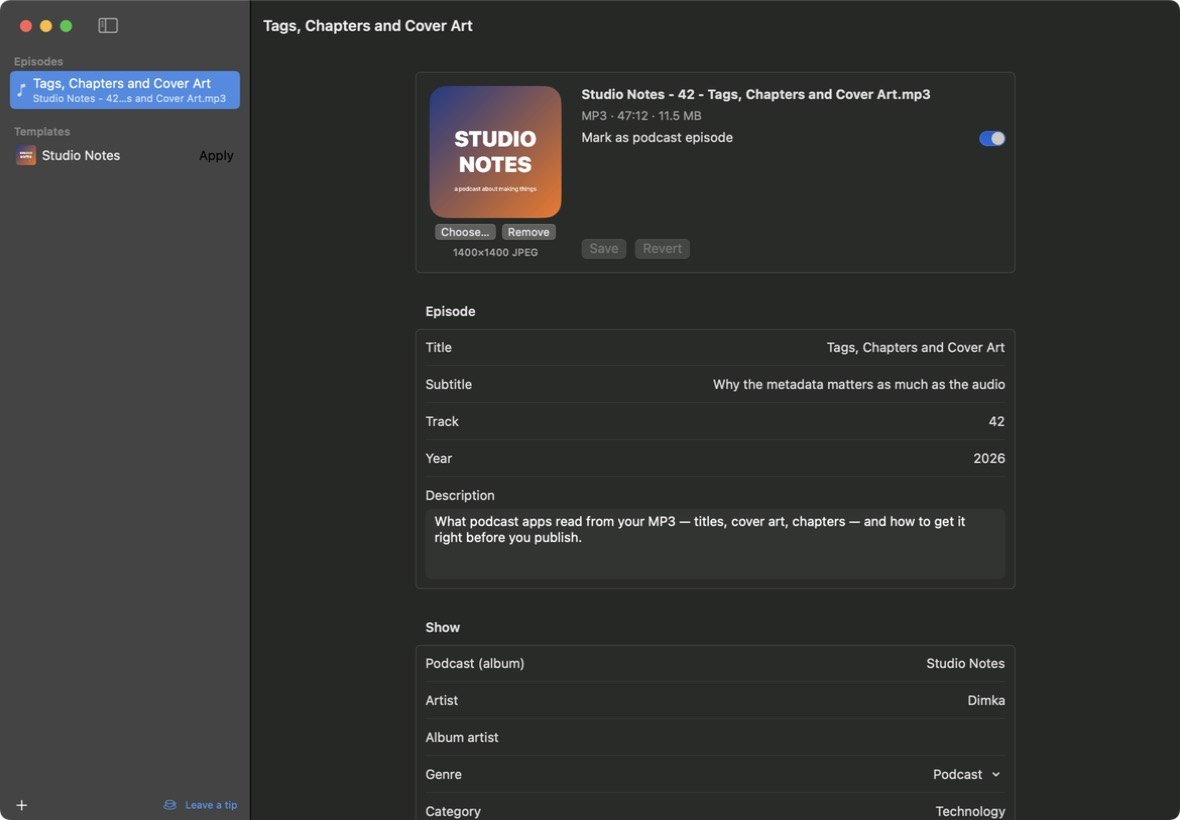
Podcast apps read a lot more than the audio: the episode title and description, the show name, the cover, the chapter list, and a flag that says this is a podcast and not a song. Get one of them wrong and the episode shows up untitled, with no art, or filed under Music.
Podcast Tagger is the small tool for that. Open an MP3 or M4A, see every field a podcast app reads, change what needs changing, and save. The audio is never touched — only the tags are rewritten. It does the same job as the tags pane in Podcast Track Cleaner, but for any episode, however it was made.
What it edits
Every field a podcast app reads
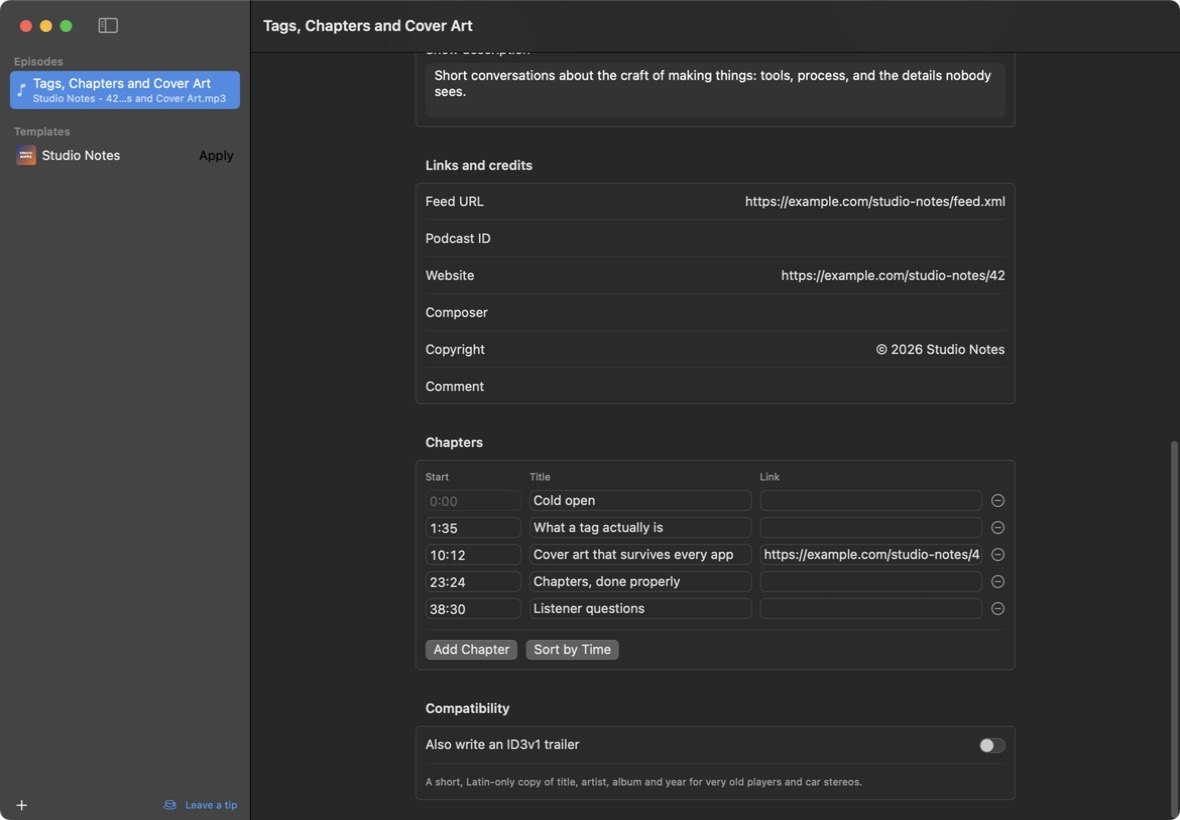
Title, subtitle, track, year, episode description, show name, artist, genre, category, keywords, show description, feed URL, podcast ID, website and copyright — plus the podcast flag that makes players file the episode as a podcast instead of music.
Cover art that checks itself
Drop an image on the cover. JPEG and PNG go in as they are; anything else is converted. Podcast Tagger tells you when the art isn't square or is under the 1400 pixels Apple Podcasts asks for.
Chapters with titles and links
Read, add, retime and rename chapters. Each one can carry its own link. The first chapter always starts the episode and every chapter runs to the next, so players never land in a gap.
MP3 and M4A
ID3 tags in MP3 files — versions 2.2, 2.3 and 2.4, and the old ID3v1 trailer — and the metadata atoms in M4A and M4B files. Cyrillic and accented titles survive in both.
Templates for each show
Set the show once
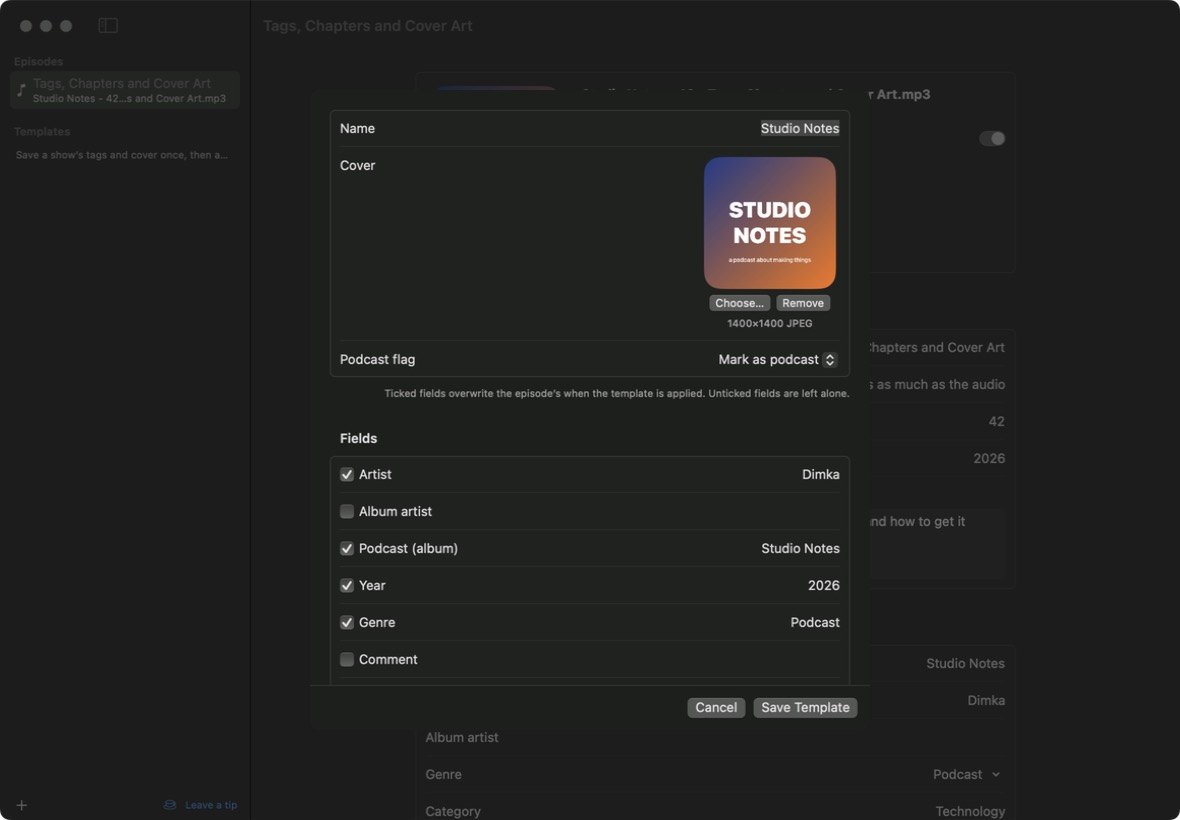
A template holds the fields that stay the same from episode to episode — show name, artist, genre, feed, description, cover art. Apply it and those fields fill in; everything else is left alone.
You choose what a template sets
Tick the fields a template should write. Make one from an episode you've already tagged, and the episode-only fields — title, track, description — start unticked.
The same templates on the Mac and the web
Templates are small .podcasttemplate files. Export one from the Mac app and import it in the browser, or the other way round.
Careful with your files
Only the tags change
The audio is copied through byte for byte. When the new tags fit in the space the old ones took, only the start of the file is rewritten; otherwise the file is written to a copy and swapped in, so a failed save never leaves you with half an episode.
Nothing it doesn't understand is lost
Frames and atoms the app has no field for — play counts, encoder notes, private data from other apps — are carried through untouched.
Mac app or browser, same result
The Mac app and the web app are two builds of the same rules, tested against the same files and checked to write identical bytes. In the browser your file is read and saved on your own computer; nothing is uploaded. Chrome and Edge save straight back into the file; other browsers download the tagged copy.
One limit worth knowing
In M4A files, edited chapters are saved in the Nero format, which most players read but Apple Podcasts does not. If an M4A already has Apple-style chapters, the app says so and leaves them as they are.
Free. No account, no trial.
The Mac app needs macOS 13 Ventura or later, on Apple Silicon or Intel, and is notarized by Apple.
If it saves you time, you can buy me a coffee.